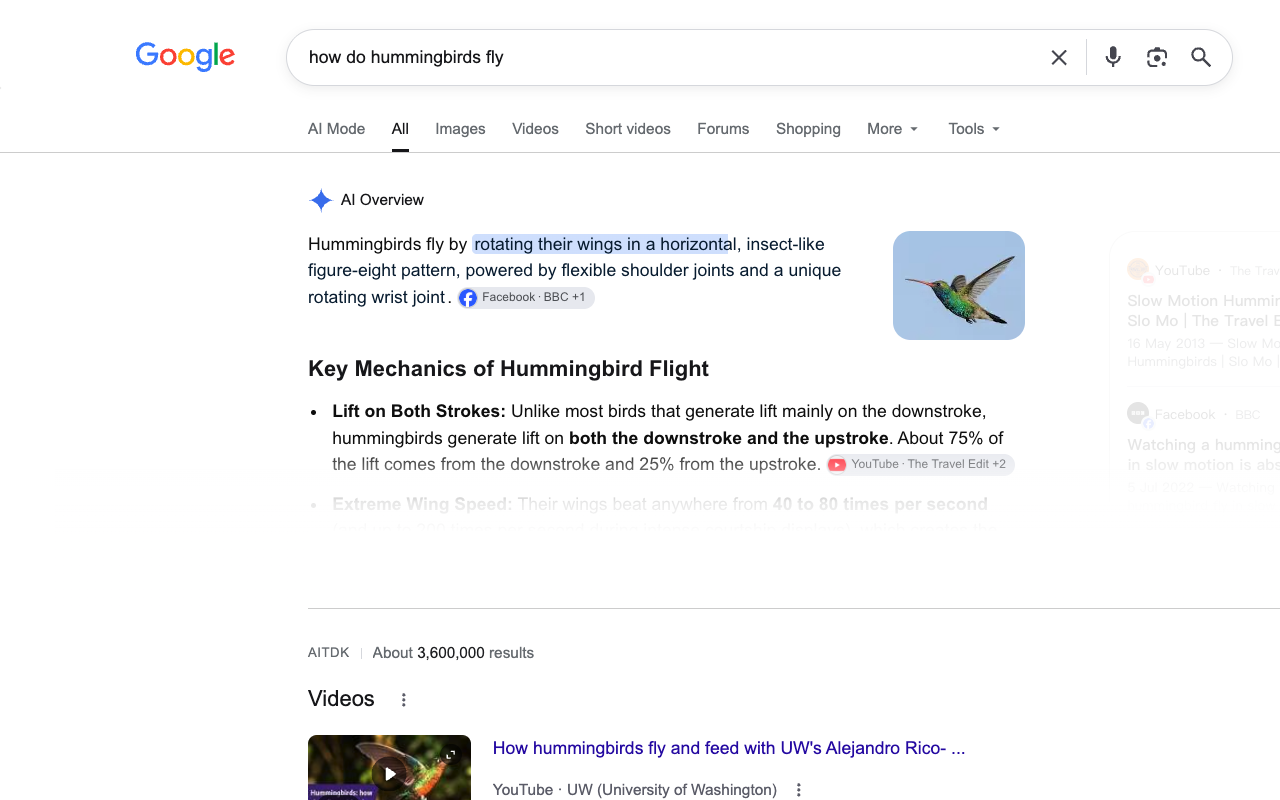
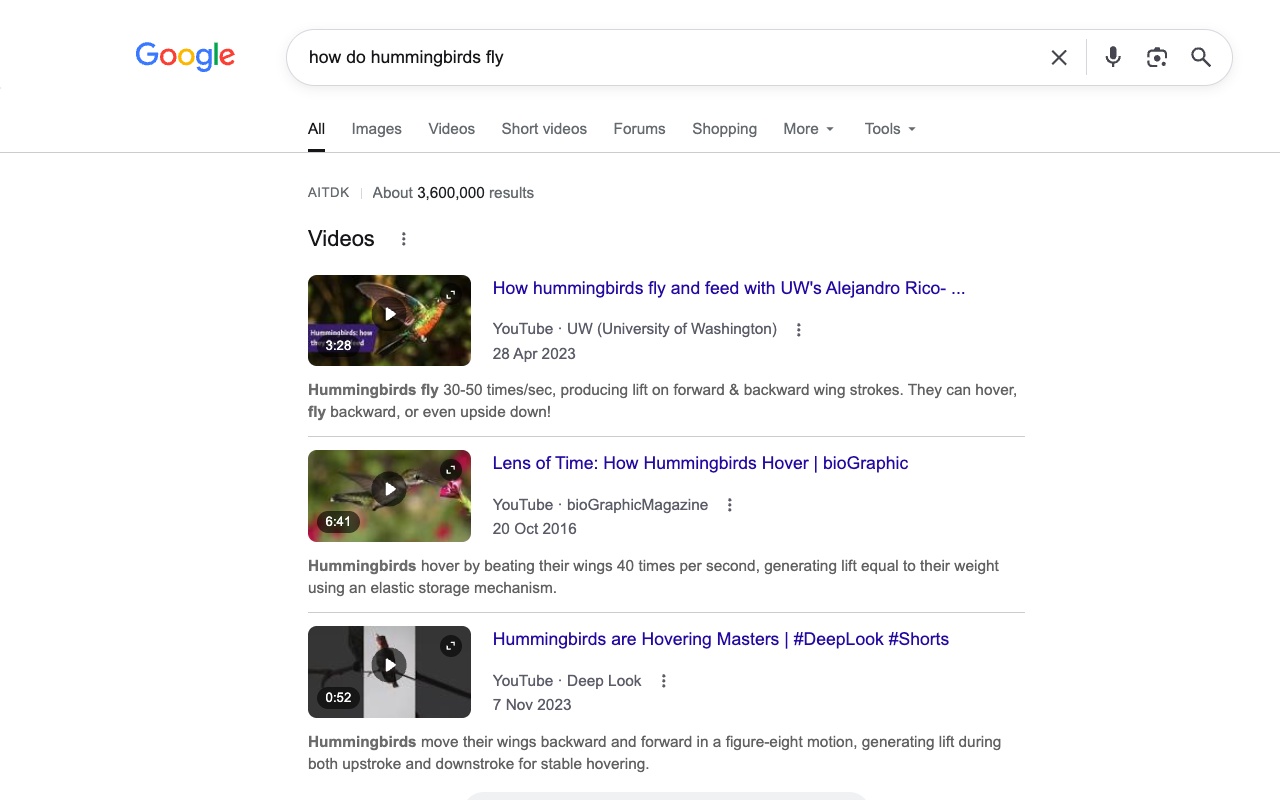
 Disable AI Overview
Why is AI Overview still showing?
The extension may be paused, the Google page may use an unfamiliar layout, or the search may be on a domain outside the installed version’s support. Check the page with the blocker paused before assuming a visible panel was missed.
1. Check the actual page
AI Overviews vary by query, region, language, and account. If no panel appeared, there was nothing for the extension to hide. If a panel remains visible, continue with the checks below.
How to check whether the blocker worked
- Open a search on a supported desktop domain such as www.google.com.
- Pause the extension and reload. If Google shows an AI Overview, note which normal results and tools are also visible.
- Turn the extension back on and reload the same search. The Overview should disappear while those other results remain.
If Google shows no Overview while the extension is paused, that search cannot demonstrate a successful block. If an Overview remains with the extension on, or a normal result disappears, report the display issue without sending private search terms.
2. Confirm the extension is on
Open the extension popup and check that Block AI Overviews is enabled. A paused extension restores hidden content on the page.
3. Reload and update
Refresh the results page. Then open chrome://extensions and ensure the extension is enabled. If a newer version is available from the Chrome Web Store, update it. Google's page markup changes often, so an outdated detector may miss a new layout.
4. Check site access and conflicts
In Chrome's extension details, verify that access to the Google Search page is allowed. Temporarily disable other extensions that rewrite Search to see whether one changes the page structure. Re-enable them after testing.
AI Mode tab still appears?
The popup has a separate Hide AI Mode tab switch. It hides recognized AI Mode tabs on supported search pages. If Google changes the tab or uses another domain, the extension may leave it visible to avoid removing an unrelated search option. Hiding the tab does not disable Google's AI Mode service.
5. Protect normal results
If a blocker hides weather, a calculator, shopping cards, or normal links, pause it and report the query type and visible problem. A cautious detector should leave uncertain page structures visible rather than hide an entire results section.
Temporary alternative
Google's Web filter can show text-based links without AI Overviews. It changes the results view, so it is not a perfect substitute when you need other Search features. Read Google's explanation.
About blocker testing
This extension has been submitted to the Chrome Web Store and is awaiting review. Its detector has automated DOM sample tests for normal results, common Google tools, and AI Mode tabs. We have not published a measured success rate across live Google results and do not claim one.