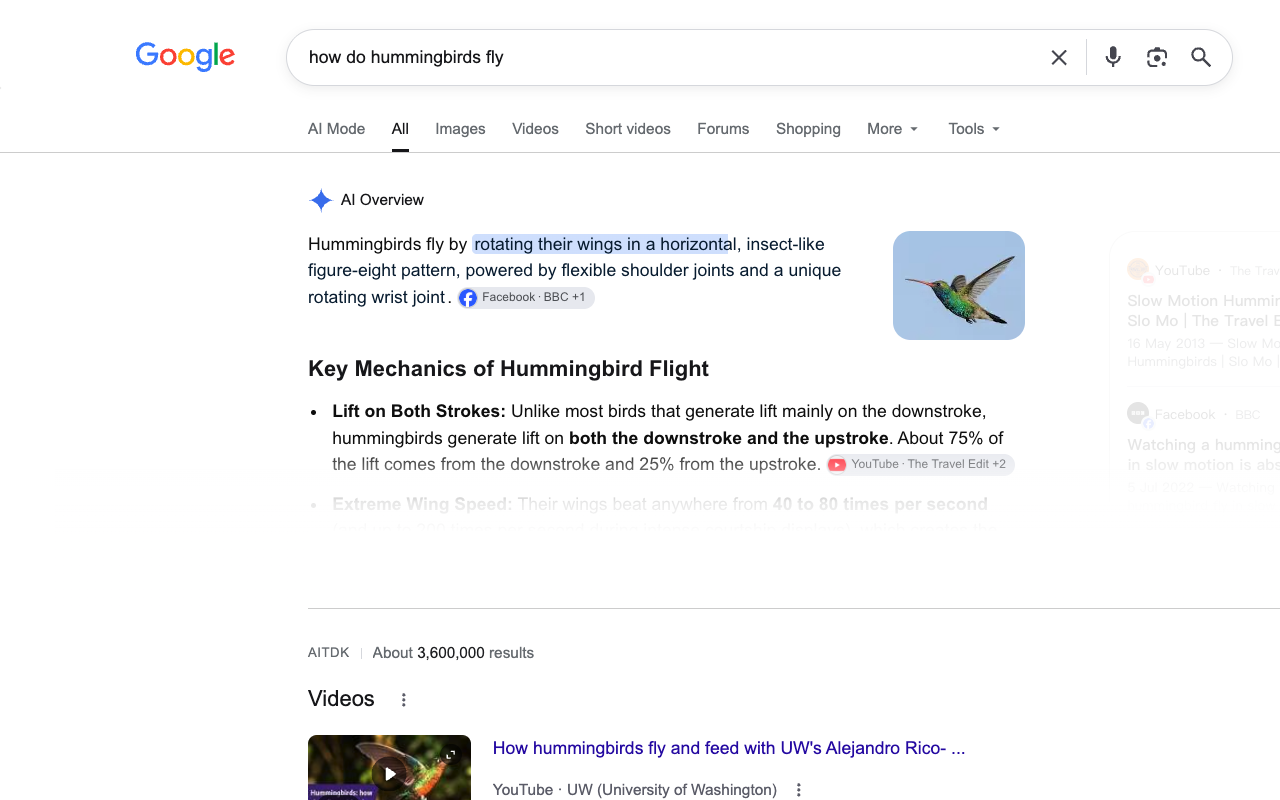
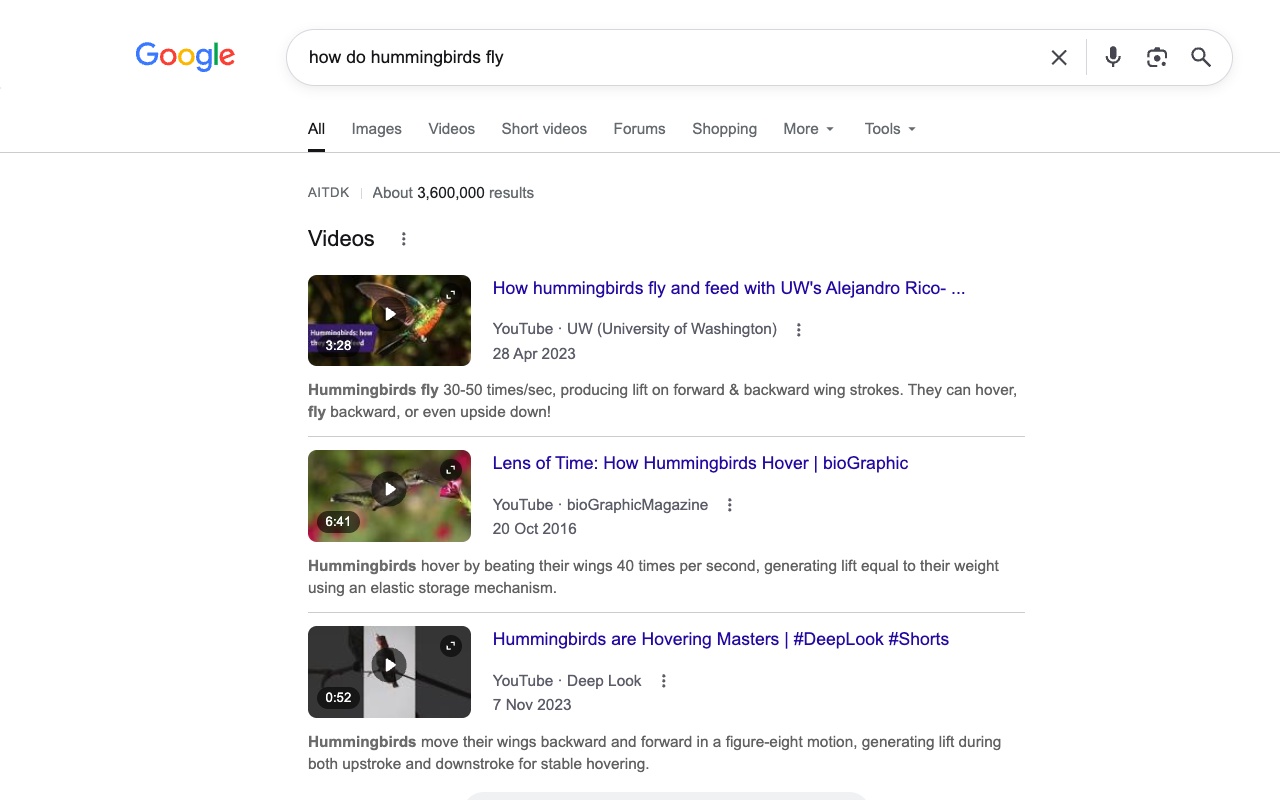
 Disable AI Overview
How do I turn off AI Overview without an extension?
- Run a Google search.
- Select Web in the row below the search box. If you do not see it, open More and select Web.
- Read the link-focused results. Return to All when you want the standard results view.
Google says the Web filter shows text-based links without features such as AI Overviews. It changes the results view; it does not change a permanent account setting. See Google’s AI Overviews help page.
How can I disable AI Overview in Chrome?
If you want the usual Google results page with less AI content, Disable AI Overview is designed to hide identifiable Overview panels locally in desktop Chrome. It aims to preserve ordinary links, shopping content, and built-in tools. A switch in the extension popup restores hidden content. The Chrome Web Store submission is still under review, so the public installation button is not available yet.
- When the store listing is published, install the extension from its Chrome Web Store page.
- Search on a supported Google domain. The extension hides panels it can identify safely.
- Open the popup to pause hiding or turn off the separate AI Mode tab option.
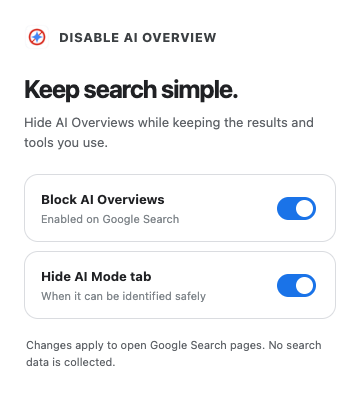
If a panel still appears, check the AI Overview blocker troubleshooting guide. Google changes its page layouts, and the extension leaves uncertain structures visible rather than risk hiding normal results.
Can I permanently disable Google AI Overview?
Google describes AI Overviews as a core Search feature. Turning off the optional “AI in Search” experiment in Labs does not remove the core feature from every search. The Web filter is a per-search result view; a Chrome extension only changes what appears in your browser. Neither stops Google from generating the original page.
Which option should I use?
| Goal | Choose | What changes |
|---|---|---|
| See mostly website links now | Google Web filter | Switches to a link-focused results view |
| Keep the standard results layout on desktop Chrome | Browser extension when published | Hides recognized panels locally |
| Search on Android or iPhone | Web filter | Mobile Chrome cannot run this desktop extension |
More questions people ask
How do I disable AI Overview on Android or iPhone?
Use the Web filter after a search. The Chrome Web Store extension is for computers. See the Android and iPhone guide for the mobile steps and limitations.
Why does AI Overview keep coming back?
Choosing Web changes that results view; a new search may open in All again. If you use the extension on a computer and a panel remains, confirm it is enabled and the Google page is supported. The troubleshooting steps separate a missed panel from a search where no Overview appeared.
Is AI Mode the same thing as AI Overview?
No. An Overview is a panel in results; AI Mode is a separate Search experience. Read the difference between AI Mode and AI Overview.